官网对自定义组件新手来说可能会比较比较笼统,写出来也可能会页面很乱
所以在这里我细致化的写出来,读一遍就可以
微信小程序自定义组件
1:创建自定义组件目录(这里我创建的自定义组件目录为myCompontent)
2:自定义组件和页面相似同样拥有 .js,.json,.wxml,.wxss四个文件,当然为了方便使用
这里使用的四个文件名称使用的是以myCompontent命名
3:在myCompontent.json中组件声明
{
"component": true
}
这是将此文件设置为自定义组件
首先展示项目截图
做过两年原生app开发总觉得自定义控件用起来很方便,只要随便一调用就可以使用了,根据自己想要的用,方便。但是当开发一段时间微信小程序时,突然发现自定义就让人苦恼了,有时候因为Android,ios系统不同让人很烦躁,兼容性问题又有些麻烦。捉摸了两天(当然是因为使用时实在太苦恼),最终决定写一个自定义dialog。
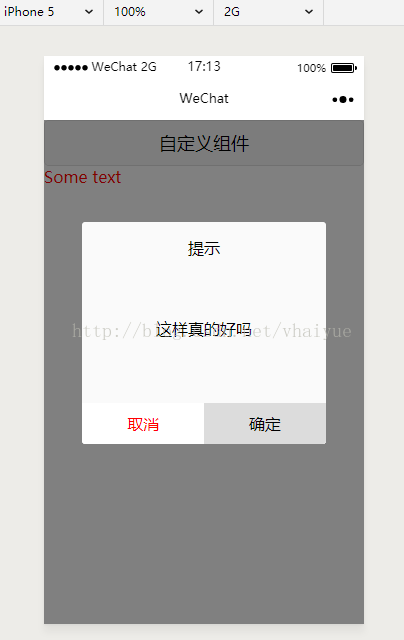
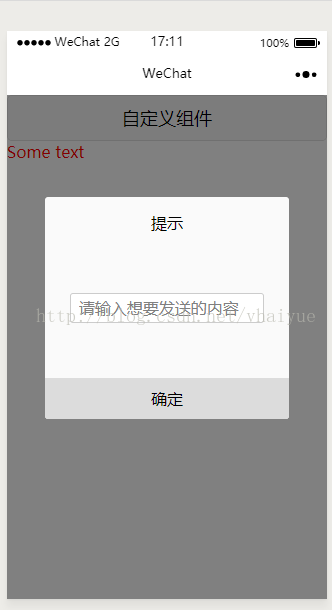

看到截图了吧,哈哈,不烦你们了,这里上传代码
1:自定义控件目录:myDialogComponent,在此目录下建立四个文件myDialogComponent.js,myDialogComponent.json,myDialogComponent.wxss,myDialogComponent.wxml.
2:首先需要在myDialogComponent.json文件中进行引用声明(将 component 字段设为 true 可这一组文件设为自定义组件)
3:wxss控件样式书写,这里我就不多赘述了,和css样式书写类似,这里只接写代码,拷贝下来就行了
myDialogComponent.wxss文件
/*mask*/.drawer_screen {width: 100%;height: 100%;position: fixed;top: 0;left: 0;z-index: 1000;background: 000;opacity: 0.5;overflow: hidden;}
/*content*/
.drawer_box {width: 76%;overflow: hidden;position: fixed;top: 50%;left: 0;z-index: 1001;background: fafafa;margin: -150px12% 0 12%;border-radius: 3px;}
.drawer_title {padding: 15px;text-align: center;background-color: gazure;}
.drawer_content {height: 130px;overflow-y: scroll;/*超出父盒子高度可滚动*/}
.title {height: 30px;line-height: 30px;width: 160rpx;text-align: center;display: inline-block;font: 30028rpx/30px"microsoft yahei";}
.text {color: black;}
.sureQuery {width: 100%;display: flex;flex-direction: row;align-items: center;justify-content: space-between;box-sizing: border-box;background-color: white;}
.btn {width: 100%;padding: 10px;text-align: center;color: red;}.btn:active{width: 100%;padding: 10px;text-align: center;color: red;background-color: gray;}
.btnSure {width: 100%;padding: 10px;background-color: gainsboro;text-align: center;}
.titleMsg {font: 20035rpx/30px;text-align: center;margin-top: 45px;display: block;}
.input_base {padding-top: 3px;padding-bottom: 3px;max-block-size: 10;display: block;background-color: white;margin-top: 45px;border: 2rpxsolid ccc;padding-left: 20rpx;margin-right: 10%;border-radius: 3px;margin-left: 10%;}4:接下来就是myDialogComponent.wxml文件了myDialogComponent.wxml文件:
view hidden='{{dialogHidden}}'view class='drawer_screen' bindtap='cancleBtn' /view class='drawer_box'view class="drawer_title"提示/viewview class='drawer_content'
text class='titleMsg'{{titleMsg}}/text
inputclass="input_base"hidden='{{inputHidden}}'bindinput="bindKeyInput"value="{{inputValue}}"maxlength='10'auto-focus='autofocus'placeholder='{{inputPlaceHalder}}'/
/viewview class='sureQuery'view bindtap='cancleBtn' class='btn' hidden='{{cancleBtn}}'取消/viewview bindtap='determineBtn' class='btnSure'确定/view/view/view/view
5:myDialogComponent.js文件
Component({properties: {inputPlaceHalder: {type: String,value: ' ',},inputHidden: {type: Boolean,value: true},
dialogHidden: {type: Boolean,value: true},
// 这里定义了innerText属性,属性值可以在组件使用时指定titleText: {type: String,value: '提示',},titleMsg: {type: String,value: ' ',},
inputMsg: {type: String,value: '请输入你他妈想干嘛',},//确定determineBtn: {type: String,value: 'default value',},//取消cancleBtn: {type: Boolean,value: true,},
},
data: {// 这里是一些组件内部数据inputValue: "",onCancleClick: false,
},
methods: {// 输入值bindKeyInput: function (e) {this.setData({inputValue: e.detail.value})},
// 这里是一个自定义方法,取消cancleBtn: function () {// Properties pro = new Properties();console.log("点击取消按钮")this.setData({dialogHidden: true,})
},
// 确定determineBtn: function () {
var determineDetail = this.data.inputValue // detail对象,提供给事件监听函数this.triggerEvent('determineevent', determineDetail)this.setData({inputValue: ""})}}}) 大功告成,终于将自定义控件写完了,接下来就要调用了
首先 1:在用到的page页面的json中进行引用声明,我用的page页目录为(myDialogTestPage)当然了,page页面同样拥有四个文件(js,json,wxss,wxml)
myDialogTestPage.json文件{"usingComponents": {"my-component-dialog": "../../myDialogComponent/myDialogComponent"(这是自定义控件的根目录结构,你们用的时候可能也不一定是这个结构,要注意,别踩坑)}}
2:使用:在wxml中引用
myDialogTestPage.wxml文件
3:myDialogTestPage.js文件
Page({/*** 页面的初始数据*/data: {// isAdministrators:trueisHidden: true,titleMsg: " ",inputHidden: false,cancleBtn: false,inputPlaceHolder: ""},
onMyEvent: function (e) {var that = this;console.log("e.detail :", e.detail)
that.setData({isHidden: true,// inputHidden: false})
},
showCompomentDialog: function () {var that = this;that.setData({isHidden: false,titleMsg: "这样真的好吗",// inputPlaceHolder: "请输入想要发送的内容",inputHidden: true,// cancleBtn: true,})}})
在showCompomentDialog:function (){
}
onMyEvent方法就是点击确定按钮(这里我只是打印出来内容,比如输入框里面的内容)
中的值进行更改你们可以试一试,(//注释掉的不要随便删除哦,去掉注释可以显示不同样式,好用的话小伙伴们)