


我们在小程序上,直接上传手机相册及拍照的图片时,因为图片过大(如10m),手机端不像我们再计算机上传输那么快,也没那么稳定,
解决办法:在图片上传前压缩图片
压缩图片就是将图片尺寸、图片质量降低,把这两个指数降低到合适的规格
1.首先在 wxml 文件中创建一个画布canvas
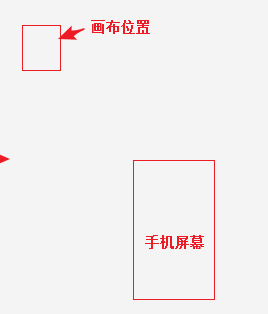
<canvas canvas-id="attendCanvasId" style="width:{{canvasWidth}}px;height:{{canvasHeight}}px;position: absolute;left:-8000px;top:-8000px;" ></canvas>注意:画布的定位,将它定位到我们看不见的地方 position: absolute; left:-8000px;top:-8000px; ,因为图片压缩不需要展示到我们手机屏幕上,大概意思如下图:
2.就是js处理部分了
思路是:wx的api 调用相册或拍照,获取图片的size,判断size大小,如果超过1M就需要压缩,没有超过1M那么就不需要压缩
压缩,即将图片尺寸等比减小,并将质量逐步降低,在循环中减小到你觉得合适的尺寸和质量,然后从画布中取出图片,上传到后端服务器中即可
具体代码如下:
upAvatar: function () { var that = this; wx.chooseImage({ count: 1, sizeType: ['original', 'compressed'], sourceType: ['album', 'camera'], success(res) { wx.showLoading({ title: '头像上传中', mask: true, }); var size = res.tempFiles[0]['size']; if (size > 1048579) { //如果图片大于1M就要进行压缩处理 //获取图片信息 wx.getImageInfo({ src: res.tempFilePaths[0], success: function (rr) { var ctx = wx.createCanvasContext('attendCanvasId'); var ratio = 1; var canvasWidth = rr.width var canvasHeight = rr.height; var quality = 0.6; //图片质量 while (canvasWidth > 3000 || canvasHeight > 3000) { //比例取整 canvasWidth = Math.trunc(rr.width / ratio) canvasHeight = Math.trunc(rr.height / ratio) ratio += 0.1; } quality = (quality + (ratio / 10)).toFixed(1); if (quality > 1) { quality = 1; } //设置canvas尺寸 that.setData({ canvasWidth: canvasWidth, canvasHeight: canvasHeight }); ctx.drawImage(res.tempFilePaths[0], 0, 0, canvasWidth, canvasHeight); //将图片填充在canvas上 ctx.draw(); //下载canvas图片 setTimeout(function () { wx.canvasToTempFilePath({ canvasId: 'attendCanvasId', width: 0, height: 0, destWidth: canvasWidth, destHeight: canvasHeight, fileType: 'jpg', quality: quality, success: function success(path) { //这里是将图片上传到服务器中 that.upAvatar(path.tempFilePath, that); }, fail: function fail(e) { wx.hideLoading(); wx.showToast({ title: '头像上传失败', icon: 'success', duration: 2000 }); } }); }, 1000); } }); } else { //小于1M的就不用压缩了 that.upAvatar(res.tempFilePaths[0], that); //上传图片到服务器 } } }) },










