


实例主要功能风格类似聊天窗口用户发送信息时,调用机器人接口返回回答信息将所有信息记录到本地存储中每次打开都显示最近的问答数据当发送空信息时有相应提示先看效果图
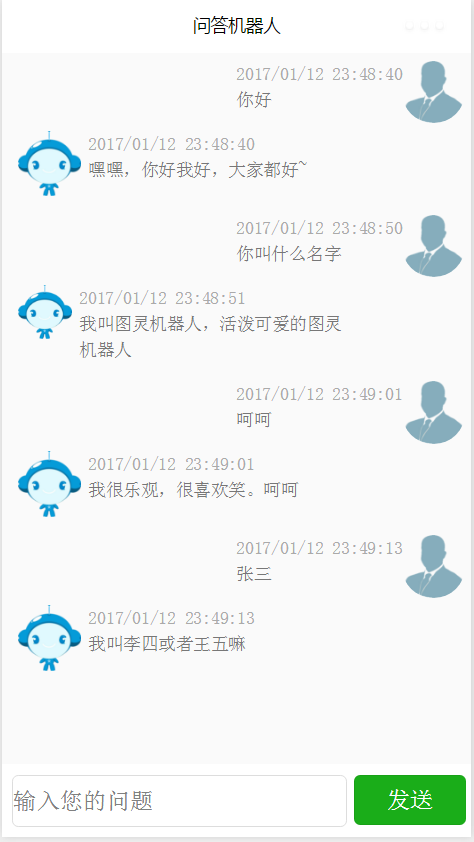
关键代码分析提示信息wx.showToast({title:'请输入您的问题',icon:'loading'});说明:icon可以接收loading、success(默认)
存储数据到本地setContent2Storage:function(data){wx.setStorage({key:'content',data:data,success:function(res){//success//console.log("=====保存成功=====");}})}说明:数据存储是以键值对的形式存在,key表示键,data表示值,可以是字段串,也可以是对象
从本地存储中取值loadContent:function(){varpage=this;wx.getStorage({key:'content',success:function(res){//successconsole.log(res);page.setData({content:res.data});}})}说明:上面的setContent2Storeage和loadContent都是属于自己在本例中的封装,微信所封装的方法分别是wx.setStorage和wx.getStorage,通过键即可获取出数据,并将数据设置到page的data中,这样即可更新页面中的数据。
index.wxmlviewclass="main-container"scroll-viewclass="content"scroll-y="true"importsrc="../templates/me-tpl"/importsrc="../templates/robot-tpl"/blockwx:for="{{content}}"wx:key="item"templatewx:if="{{item.isRobot}}"is="robot-tpl"data="{{item}}"/templatewx:if="{{!item.isRobot}}"is="me-tpl"data="{{item}}"//block/scroll-viewviewclass="sender-container"viewstyle="flex-grow:1"inputplaceholder="输入您的问题"value="{{q}}"bindinput="inputEvent"//viewviewbuttontype="primary"bindtap="queryAnswer"发送/button/view/view/view说明:在这个实例中增加使用了scroll-view可滚动的视图容器。详细说明可参考,也使用了wx:if用于判断该使用哪个视图模板
视图模板templatename="me-tpl"viewclass="me"imagesrc="../imgs/me.png"/viewtextclass="date"{{item.date}}/texttext{{item.text}}/text/view/view/template以上只是贴出了一些相对关键的代码,直接使用无法运行。
机器人的接口参考了,也感谢聚合数据为我们提供了各种接口。
本文章源代码:
本文章来自










