下面这个图片就是通过图片和文字等内容合成的一张带有微信小程序二维码的图片,在小程序内部长按可以识别出来:
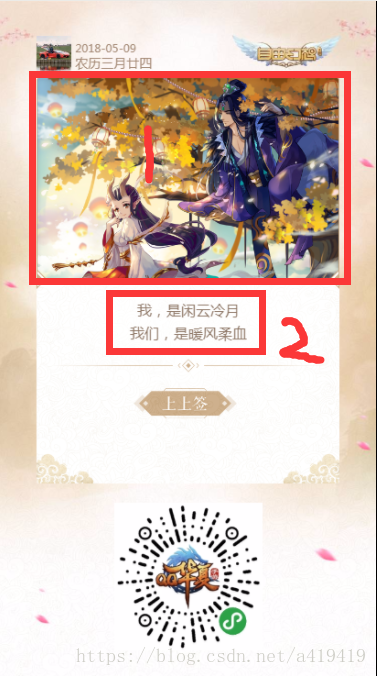
基本思路是先将内容用canvas排好版,然后把该canvas转化成图片;图片利用wx.previewImage进行展示,才能识别图片中的微信小程序二维码,这是博主目前知道唯一一种识别二维码的手段。
1.合成canvas
wxml:
canvas canvas-id="mycanvas" class='canvas' id="mycanvas" wx:if="{{isShowCav}}" style='border:1px solid #000000'/wxss
.canvas{ position: absolute; top: 0; left: 0; z-index: 2000; width: 748rpx; height: 1336rpx;}js
canvas:function(object){ let _this = this; let realWidth, realHeight; //创建节点选择器 var query = wx.createSelectorQuery(); //选择id query.select('#mycanvas').boundingClientRect() query.exec(function (res) { //res就是 该元素的信息 数组 realWidth = res[0].width; realHeight = res[0].height; console.log('realHeight', realHeight); console.log('realWidth', realWidth); const ctx = wx.createCanvasContext('mycanvas'); ctx.drawImage("../../images/ctx-bg.jpg", 0, 0, realWidth, realHeight); ctx.drawImage(_this.data.canvasUserPic, (realWidth * 0.099), (realHeight * 0.052), (realWidth * 0.091), (realWidth * 0.091)); ctx.setFontSize(12); ctx.setFillStyle("#a38874"); ctx.fillText(object.date, (realWidth * 0.201), (realHeight * 0.076)); ctx.setFontSize(14); ctx.setFillStyle("#a38874"); ctx.fillText("农历" + object.lunar, (realWidth * 0.201), (realHeight * 0.099)); ctx.drawImage("../../images/swiper-bg.png", (realWidth * 0.099), (realHeight * 0.112), (realWidth * 0.8), (realHeight * 0.60)); ctx.drawImage(_this.data.canvasShowImg, (realWidth * 0.099), (realHeight * 0.112), (realWidth * 0.8), (realHeight * 0.30)); ctx.drawImage("../../images/swiper-detail.png", (realWidth * 0.099), (realHeight * 0.395), (realWidth * 0.8), (realHeight * 0.03)); ctx.setFontSize(16); ctx.setFillStyle("#8d7665"); ctx.setTextAlign('center') ctx.fillText(object.title1, realWidth/2, _this.calculateWH(2, 620, realWidth, realHeight)); ctx.fillText(object.title2, realWidth / 2, _this.calculateWH(2, 666, realWidth, realHeight)); ctx.drawImage("../../images/swiper-line.png", (realWidth - realWidth * 0.71)/2, (realHeight * 0.528), (realWidth * 0.71), (realHeight * 0.0195)); ctx.drawImage("../../images/luckpic.png", _this.calculateWH(1, 267, realWidth, realHeight), _this.calculateWH(2, 763, realWidth, realHeight), _this.calculateWH(1, 204, realWidth, realHeight), _this.calculateWH(2, 60, realWidth, realHeight)); ctx.setFontSize(12); ctx.fillText(object.luck_title, realWidth / 2, _this.calculateWH(2, 880, realWidth, realHeight)); ctx.drawImage("../../images/code.jpg", _this.calculateWH(1, 229, realWidth, realHeight), _this.calculateWH(2, 989, realWidth, realHeight), _this.calculateWH(1, 292, realWidth, realHeight), _this.calculateWH(1, 292, realWidth, realHeight)) ctx.draw(); setTimeout(function () { wx.canvasToTempFilePath({ canvasId: 'mycanvas', success: function (res) { var tempFilePath = res.tempFilePath; _this.setData({ canvasUrl: tempFilePath }) if (tempFilePath !== '') { _this.setData({ isShowCav: false }); wx.hideLoading(); wx.previewImage({ current: _this.data.canvasUrl, // 当前显示图片的http链接 urls: [_this.data.canvasUrl], // 需要预览的图片http链接列表 }) } }, fail: function (res) { console.log(res); } }); }, 500); }) },出现问题:
1.服务器上发送过来的图片路径直接插进ctx.drawImage 上,手机上显示不了。
解决方案:利用wx.downloadFile 将图片下载再保存好这个新图片路径,然后放到ctx.drawImage 上
//下载图片 onShow1: function (object) { let _this = this; _this.setData({ isShowCav: true }) wx.downloadFile({ url: object.avatarurl, success: function (sres) { _this.setData({ canvasUserPic: sres.tempFilePath }); wx.downloadFile({ url: object.show_img, success: function (sres1) { _this.setData({ canvasShowImg: sres1.tempFilePath }); _this.canvas(object); } }) } }) }, 2.canvas出现在手机上的顶层,不管z-index设置多少层都没有用。
解决方案:利用wx:if="{{isShowCav}}" 将canvas临时隐藏,要用到的时候再显示。不用再隐藏掉。
3.canvas里面的文字如何居中,官方文档虽然提供了案例,但是没有说具体是怎么用的。
解决方案:
const ctx = wx.createCanvasContext('myCanvas')ctx.setStrokeStyle('red')ctx.moveTo(150, 20)ctx.lineTo(150, 170)ctx.stroke()ctx.setFontSize(15)ctx.setTextAlign('left')ctx.fillText('textAlign=left', 150, 60)ctx.setTextAlign('center')ctx.fillText('textAlign=center', 150, 80)ctx.setTextAlign('right')ctx.fillText('textAlign=right', 150, 100)ctx.draw()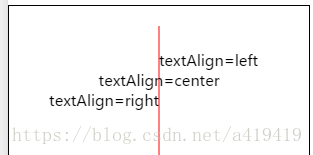
这里面的居中不是我们常用的css那种居中;而是忽略了文字宽高的意思,所以你还是要给文字设置一个(x,y)坐标,只要将这个坐标写上canvas宽度的一半,它就可以实现居中了。
小程序的坑还是不好踩啊,一肛上半天时间就没了!