上一章介绍了微信小程序入门七登录注册,这章谈谈头像的选择,上传,预览以及后台服务端代码的功能。本章节主要用的知识点有
1. action-sheet 底部弹出可选菜单组件
2. wx.uploadFile 将本地资源上传到服务器
3. wx.chooseImage 从本地相册选择图片或使用相机拍照。
4. wx.previewImage 预览图片
效果图:
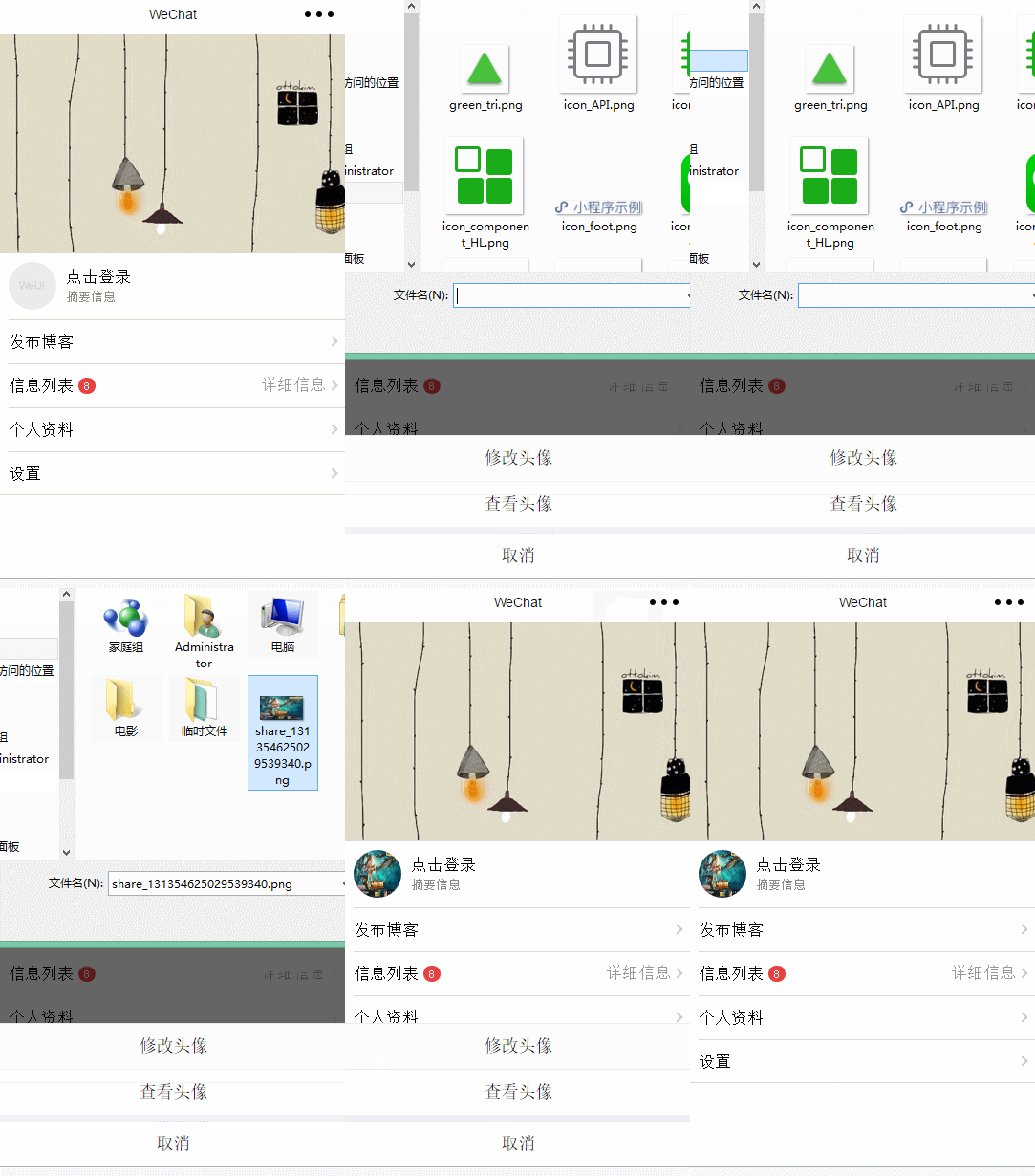
wxml代码:
!--变量说明:windowHeight :设备的窗口的高度windowWidth : 设备的窗口的宽度actionSheetHidden : 组件是否显示actionSheetItems :组件菜单项--view class="page__bd" style="height: {{windowHeight * 0.8}}px; width: {{windowWidth}}px;" view class="weui-cells weui-cells_after-title me-info" style="top:{{windowHeight * 0.4}}px;" view class="weui-cell" view class="weui-cell__hd" style="position: relative;margin-right: 10px;" image src="{{userImg}}" style="width: 50px; height: 50px; display: block;border-radius:25px;" bindtap="clickImage"/ /view view class="weui-cell__bd" navigator url="../login/login" 点击登录/navigator view style="font-size: 13px;color: #888888;"摘要信息/view /view /view view class="weui-cell weui-cell_access" view class="weui-cell__bd" view style="display: inline-block; vertical-align: middle"发布博客/view /view view class="weui-cell__ft weui-cell__ft_in-access"/view /view view class="weui-cell weui-cell_access" view class="weui-cell__bd" view style="display: inline-block; vertical-align: middle"信息列表/view view class="weui-badge" style="margin-left: 5px;"8/view /view view class="weui-cell__ft weui-cell__ft_in-access"详细信息/view /view view class="weui-cell weui-cell_access" view class="weui-cell__bd" view style="display: inline-block; vertical-align: middle"个人资料/view /view view class="weui-cell__ft weui-cell__ft_in-access"/view /view view class="weui-cell weui-cell_access" view class="weui-cell__bd" view style="display: inline-block; vertical-align: middle"设置/view /view view class="weui-cell__ft weui-cell__ft_in-access"/view /view /view action-sheet hidden="{{actionSheetHidden}}" bindchange="actionSheetbindchange" block wx:for="{{actionSheetItems}}" wx:key="unique" action-sheet-item bindtap="{{item.bindtap}}"{{item.txt}}/action-sheet-item /block action-sheet-cancel class="cancel"取消/action-sheet-cancel /action-sheet/viewwxss代码:
.page__bd{ background: url(https://www.itit123.cn/image/meBack.jpg) no-repeat; background-size:cover;}js代码:
var util = require('../../utils/util.js');var app = getApp();Page({ data: { userImg: "../../images/pic_160.png", // 头像图片路径 actionSheetHidden: true, // 是否显示底部可选菜单 actionSheetItems: [ { bindtap: 'changeImage', txt: '修改头像' }, { bindtap: 'viewImage', txt: '查看头像' } ] // 底部可选菜单 }, // 初始化加载获取设备长宽 onLoad: function (options) { var that = this; wx.getSystemInfo({ success: function (res) { that.setData({ windowHeight: res.windowHeight, windowWidth: res.windowWidth }) } }); }, // 点击头像 显示底部菜单 clickImage: function () { var that = this; that.setData({ actionSheetHidden: !that.data.actionSheetHidden }) }, // 点击其他区域 隐藏底部菜单 actionSheetbindchange: function () { var that = this; that.setData({ actionSheetHidden: !that.data.actionSheetHidden }) }, // 上传头像 changeImage: function () { var that = this; wx.chooseImage({ count: 1, // 默认9 sizeType: ['original', 'compressed'], // 可以指定是原图还是压缩图,默认二者都有 sourceType: ['album', 'camera'], // 可以指定来源是相册还是相机,默认二者都有 success: function (res) { // 返回选定照片的本地文件路径列表,tempFilePath可以作为img标签的src属性显示图片,只有一张图片获取下标为0 var tempFilePaths = res.tempFilePaths[0]; that.setData({ userImg: tempFilePaths, actionSheetHidden: !that.data.actionSheetHidden }) util.uploadFile('/itdragon/uploadImage', tempFilePaths, 'imgFile' ,{}, function (res) { console.log(res); if (null != res) { that.setData({ userImg: res }) } else { // 显示消息提示框 wx.showToast({ title: '上传失败', icon: 'error', duration: 2000 }) } }); } }) }, // 查看原图 viewImage: function () { var that = this; wx.previewImage({ current: '', // 当前显示图片的http链接 urls: [that.data.userImg] // 需要预览的图片http链接列表 }) }});utils.js代码:
//上传文件function uploadFile(url, filePath, name, formData, cb) { console.log('a=' + filePath) wx.uploadFile({ url: rootDocment + url, filePath: filePath, name: name, header: { 'content-type': 'multipart/form-data' }, // 设置请求的 header formData: formData, // HTTP 请求中其他额外的 form data success: function (res) { if (res.statusCode == 200 && !res.data.result_code) { return typeof cb == "function" && cb(res.data) } else { return typeof cb == "function" && cb(false) } }, fail: function () { return typeof cb == "function" && cb(false) } })}后台服务器代码:
@RequestMapping("uploadImage")@ResponseBody public String uploadHeadImage(HttpServletRequest request, @RequestParam(value = "imgFile" , required=false) MultipartFile imageFile) {try {System.out.println("imageFile :::: " + imageFile);String realPath = request.getSession().getServletContext().getRealPath("/");if(imageFile!=null){if(GenerateUtils.allowUpload(imageFile.getContentType())){String fileName = GenerateUtils.rename(imageFile.getOriginalFilename());String saveName = fileName.substring(0,fileName.lastIndexOf("."));File dir = new File(realPath + "image");if(!dir.exists()){dir.mkdirs();}File file = new File(dir,saveName+".jpg");imageFile.transferTo(file);return "https://www.itit123.cn/sierew/image/"+file.getName();}}} catch (Exception e) {e.printStackTrace();} return "null"; }最后是有关头像裁剪的问题,没有找到合适的解决方法。不能在选择图片的时候进行裁剪,如果有知道的朋友请赐教。还有一种是图片选择后裁剪。可以参考 weCropper.js 地址:https://github.com/dlhandsome/we-cropper
微信小程序系统学习地址:微信小程序入门教程