网上的经验其实挺多。我是按照这个
https://www.jianshu.com/p/01f526a4f948
https://github.com/JaimeCheng/canvasShareImg
主要的坑:
1.网络图片要下载到本地,就是getimginfo和promise,具体技术细节我也不晓得。然后就是本地图片的地址和网络图片的地址不同。本地的要加../../images/+res[0].path,而网络的直接是res[0].path。本机调试看不出来,用真机调试比较容易发现问题。
2.画布的位置,文字的位置,要慢慢调到合适。https://www.ifanr.com/minapp/925253
3.最关键的是,目前有极少的在小程序里用html2canvas的,都是直接把图片啊,文章里的文字啊,取过来,再画到画布上。这点看了很久才明白。比如这里https://blog.csdn.net/sufei_web/article/details/81736101
4.清晰度的问题。保存图片的时候,长度和高度乘以2就行了。https://www.csweigou.com/article/2209.html
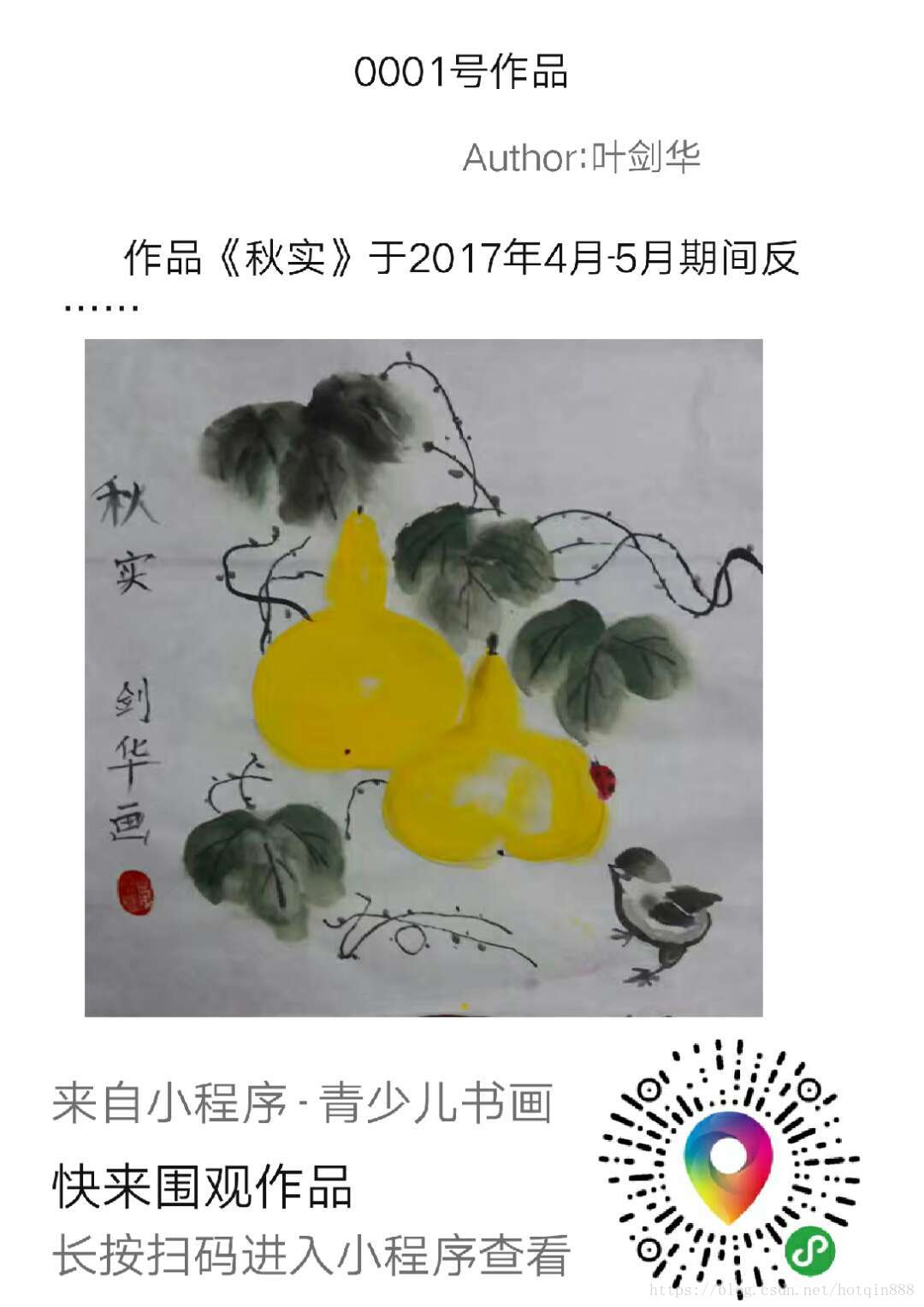
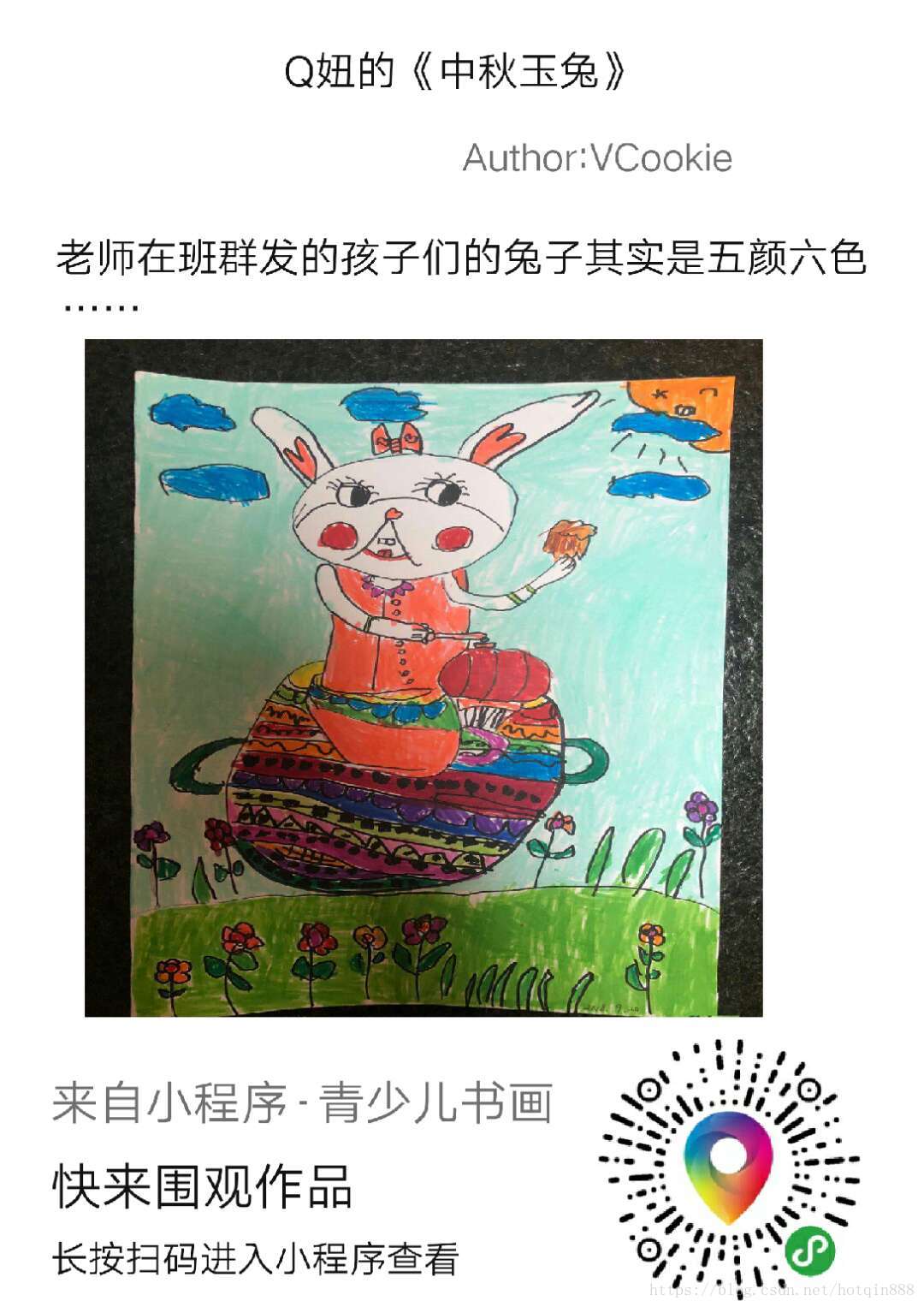
//获取应用实例const app = getApp()let wxparse = require("../../wxParse/wxParse.js");Page({ data: { dkheight: 300, dkcontent: "", leassonTilte: '', time: '', id: '', inputVal: '', msgData: [{ msg: '极好的', index: 1, id: 1, name: "自强不息", likes: { num: 1 }, textareaValue: "输入留言" }], hidden: true, //画布 canvasHidden: true, //设置画板的显示与隐藏,画板不隐藏会影响页面正常显示 shareImgPath: '' //用于储存canvas生成的图片 }, /** * 生命周期函数--监听页面加载 */ onLoad: function(options) { // console.log(options) this.setData({ id: options.id }) // 获得高度 let winPage = this; wx.getSystemInfo({ success: function(res) { let winHeight = res.windowHeight; // console.log(winHeight); winPage.setData({ dkheight: winHeight - winHeight * 0.05 - 80 }) } }); var that = this; //获取用户设备信息,屏幕宽度 wx.getSystemInfo({ success: res = { that.setData({ screenWidth: res.screenWidth }) // console.log(that.data.screenWidth) } }) var getData = wx.request({ url: 'https://zsj.itdos.com/v1/wx/getwxarticle/' + options.id, // data: { // x: '', // y: '' // id: options.id // }, header: { 'content-type': 'application/json' // 默认值 }, success: function(res) { // console.log(res.data) that.setData({ dkcontent: res.data.html, leassonTilte: res.data.title, time: res.data.time, author: res.data.author, //画布上的图片和文字,文字要控制字数 // photo:res.data.imgUrl, // word:res.data.word views: res.data.Views, }) wxparse.wxParse('dkcontent', 'html', that.data.dkcontent, that, 5) // 生成画布 let promise1 = new Promise(function(resolve, reject) { wx.getImageInfo({ src: res.data.imgUrl, success: function(res1) { // console.log(res1) resolve(res1); } }) }); let promise2 = new Promise(function(resolve, reject) { wx.getImageInfo({ src: '../../images/qrcode.jpg', success: function(res1) { // console.log(res1) resolve(res1); } }) }); Promise.all([ promise1, promise2 ]).then(res1 = { // console.log(res1) const ctx = wx.createCanvasContext('shareImg') //主要就是计算好各个图文的位置 // var unit = that.data.screenWidth / 375 ctx.setFillStyle('white'); ctx.fillRect(0, 0, 600, 880); ctx.drawImage(res1[0].path, 50, 200, 400, 400) ctx.drawImage('../../' + res1[1].path, 350, 610, 160, 160) // ctx.drawImage(imgurl, 50, 200, 400, 400) // ctx.drawImage(bgImgPath, 350, 610, 160, 160) ctx.setFontSize(28) ctx.setFillStyle('#6F6F6F') ctx.fillText('来自小程序 - 青少儿书画', 30, 660) ctx.setFontSize(30) ctx.setFillStyle('#111111') ctx.fillText('快来围观作品', 30, 710) ctx.setFontSize(22) ctx.fillText('长按扫码进入小程序查看', 30, 750) ctx.setFillStyle('#6F6F6F') ctx.fillText('Author:' + res.data.author, 545 / 2, 100) ctx.setTextAlign('center') ctx.setFontSize(24) ctx.setFillStyle('#111111') ctx.fillText(res.data.title, 545 / 2, 50) ctx.fillText(res.data.word, 545 / 2, 160) ctx.fillText('……', 60, 190) ctx.stroke() ctx.draw() }) } }) }, // 同时获取留言即可 // var that = this; // wx.getStorage({ // key: 'info', // success: function (res) { // //msgData还是空的 // var list = that.data.msgData; // var a = list ? list : [] // var apple = res.data // //将数据加入到msgData // a = apple // that.setData({ // msgData: a // }) // } // }) onShareAppMessage: function() { // console.log(this.data.id) return { title: '青少儿书画●内容', path: 'pages/detail/detail?id=' + this.data.id } }, // 删除留言 del(e) { var that = this var n = e.target.dataset.index; var list = that.data.msgData wx.showModal({ title: '提示', content: '是否删除该条数据', success: function(res) { // console.log(res.confirm) if (res.confirm) { list.splice(n, 1); that.setData({ msgData: list }) wx.showToast({ title: '删除成功', }) } } }) }, // 添加留言 add(e) { if (this.data.inputVal == '') { wx.showToast({ title: '请留言', }) return false; } var list = this.data.msgData; var a = list ? list : [] a.push({ msg: this.data.inputVal }) wx.setStorage({ key: 'info', data: a, }) this.setData({ msgData: a, inputVal: '' }) }, changeinputVal(e) { this.setData({ inputVal: e.detail.value }) }, /** * 生成分享图 */ share: function() { var that = this //获取用户设备信息设备像素比 // wx.getSystemInfo({ // success: res = { // that.setData({ // pixelRatio: res.pixelRatio // }) // console.log(that.data.pixelRatio) // } // }) // 本质上就是生成一个更大的图片,因为手机的屏幕设备的像素比现在一般都是超过2的。实际上我们只需要在使用wx.canvasToTempFilePath的时候,设置参数destWidth和destHeight(输出的宽度和高度)为width和height的2倍以上即可。 wx.showLoading({ title: '努力生成中...' }) wx.canvasToTempFilePath({ x: 0, y: 0, width: 545, height: 771, destWidth: 545 * 2, destHeight: 771 * 2, canvasId: 'shareImg', success: function(res) { // console.log(res.tempFilePath); that.setData({ prurl: res.tempFilePath, hidden: false }) wx.hideLoading() }, fail: function(res) { console.log(res) } }) }, /** * 保存到相册 */ save: function() { var that = this //生产环境时 记得这里要加入获取相册授权的代码 wx.saveImageToPhotosAlbum({ filePath: that.data.prurl, success(res) { wx.showModal({ content: '图片已保存到相册,赶紧晒一下吧~', showCancel: false, confirmText: '好哒', confirmColor: '#72B9C3', success: function(res) { if (res.confirm) { // console.log('用户点击确定'); that.setData({ hidden: true }) } } }) } }) },})