


微信小程序-开发入门(一)
微信小程序已经火了一段时间了,之前一直也在关注,就这半年的发展来看,相对原生APP大部分公司还是不愿意将主营业务放到微信平台上,以免受制于腾讯,不过就小程序的应用场景(用完即走和二维码分发等)还是很值得我们学习的,技术上面如果了解React的话,会发现他们在组件化上面有很多雷同之处。说白了,小程序就是基于微信平台的H5轻应用,微信将系统底层功能(设备、位置、媒体、文件等)和微信自身功能(登录、支付、分享等)封装成相应API供小程序调用。
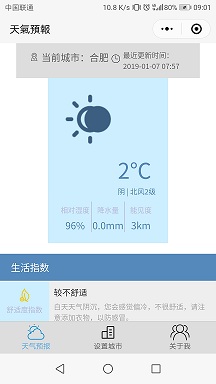
自己根据官方文档写过一个DOME,借助和风天气开放API接口,实现天气预报.
一、小程序基本概念
1、开发工具:为了配合小程序开发,微信专门配备了自己的开发工具,自行选择对应版本安装。

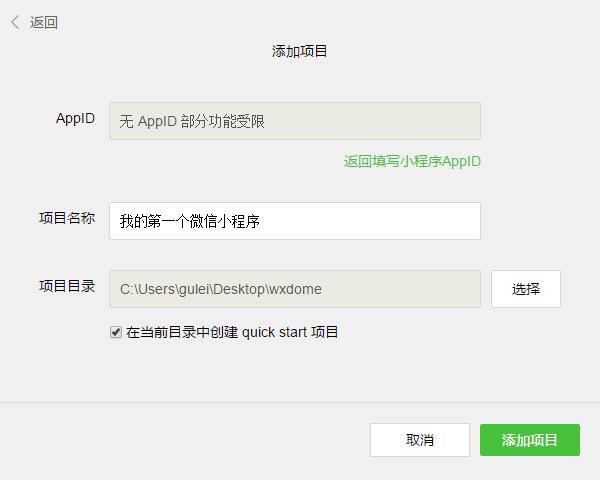
2、创建项目应用:安装完成后,打开并扫码登录。小程序发布需要企业级的认证公众号,所以个人订阅号是不能发布的。所以我这里选择无AppID,创建项目选择一个本地空文件夹,勾选创建quick start 项目生成一个demo。
3、编写小程序:demo初始化并包含了一些简单的代码文件,其中app.js、app.json、app.wxss 这三个是必不可少的,小程序会读取这些文件初始化实例。
app.js是小程序的初始化脚本,可以在这个文件中监听小程序的生命周期,申请全局变量和调用API等
app.json是对小程序的全局配置,pages设置页面路径组成(默认第一条为首页),window设置默认页面的窗口表现等
app.wxss 是整个小程序的公共样式表。类似网站开发中的common.css
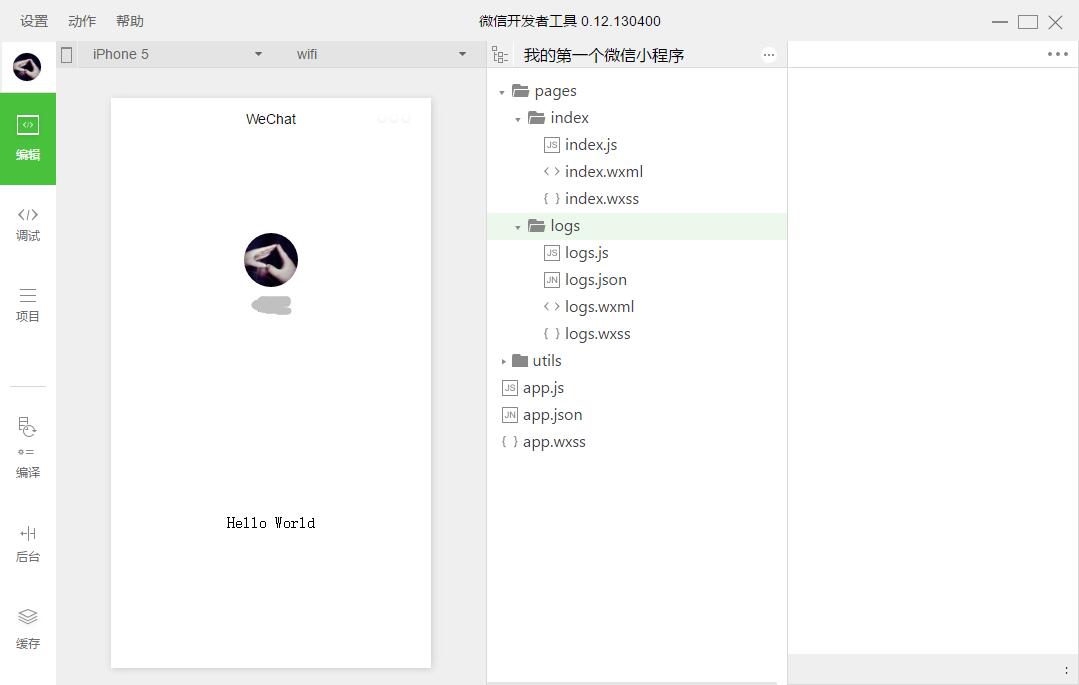
4、创建页面:在pages目录下,由一个文件夹中的四个同名不同类型文件组成。.js是脚本文件,.json是配置文件,.wxss是样式表文件,.wxml是页面结构文件,其中json和wxss文件为非必须(默认会继承app的json和wxss默认设置)。
二、小程序的框架
1、小程序的配置
app.json主要分为五个部分:pages:页面组,window:框架样式(状态栏、导航条、标题、窗口背景色),tabBar:底部菜单,networkTimeout:网络超时设置,debug:开启debug模式
page.json针对页面单独设置,层叠掉app.json的全局设置
//app.json
{  "pages":[    "pages/index/index",    "pages/logs/logs"  ],  "window":{    "backgroundTextStyle":"light",    "navigationBarBackgroundColor": "#000",    "navigationBarTitleText": "WeChat",    "navigationBarTextStyle":"white"  }}
2、小程序的逻辑
使用App()来注册一个小程序,必须在app.js中注册,且不能注册多个
App({//如下为小程序的生命周期 onLaunch: function() { },//监听初始化 onShow: function() { },//监听显示(进入前台) onHide: function() { },//监听隐藏(进入后台:按home离开微信) onError: function(msg) { },//监听错误 //如下为自定义的全局方法和全局变量 globalFun:function(){}, globalData: 'I am global data'})使用Page()注册一个页面,在每个页面的js文件中注册
Page({ data: {text: "This is page data."},//页面数据,用来维护视图,json格式 onLoad: function(options) { },//监听加载 onReady: function() { },//监听初次渲染完成 onShow: function() { },//监听显示 onHide: function() { },//监听隐藏 onUnload: function() { },//监听卸载 onPullDownRefresh: function() { },//监听下拉 onReachBottom: function() { },//监听上拉触底 onShareAppMessage: function () { },//监听右上角分享 //如下为自定义的事件处理函数(视图中绑定的) viewTap: function() {//setData设置data值,同时将更新视图 this.setData({text: 'Set some data for updating view.'}) }})
3、小程序的视图与事件绑定
在每个页面中的wxml文件中,对页面js中data进行数据绑定,以及自定义事件绑定
!--{{}}绑定data中的指定数据并渲染到视图--view class="title"{{text}}/view!--wx:for获取数组数据进行循环渲染,item为数组的每项--view wx:for="{{array}}" {{item}} /view!--wx:if条件渲染--view wx:if="{{view == 'WEBVIEW'}}" WEBVIEW /viewview wx:elif="{{view == 'APP'}}" APP /viewview wx:else="{{view == 'MINA'}}" MINA /view!--模板--template name="staffName" viewFirstName: {{firstName}}, LastName: {{lastName}}/view/templatetemplate is="staffName" data="{{...template.staffA}}"/templatetemplate is="staffName" data="{{...template.staffB}}"/template!--bindtap指定tap事件处理函数为ViewTap--view bindtap="ViewTap" 点我点我 /view
Page({ data: {//data数据主要用于视图绑定 text:"我是一条测试", array:[0,1,2,3,4], view:"APP", template:{ staffA: {firstName: 'Hulk', lastName: 'Hu'}, staffB: {firstName: 'Shang', lastName: 'You'} } }, ViewTap:function(){console.log('额,点到我了了~')}//自定义事件,主要用于事件绑定})
4、小程序的样式
在每个页面中的wxss文件中,对wxml中的结构进行样式设置,等同于css,扩展了rpx单位。其中app.wxss默认为全局样式,作用所有页面。
三、小程序实战-天气预报(利用和风天气API)
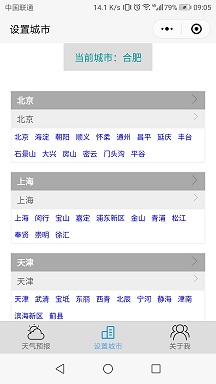
先看看完成后的效果,一共三个页面
1、设置底部菜单和页面
我们就在quick start生成的demo基础上进行修改即可,因为涉及图标icon,我们新建一个images文件夹来存放图片
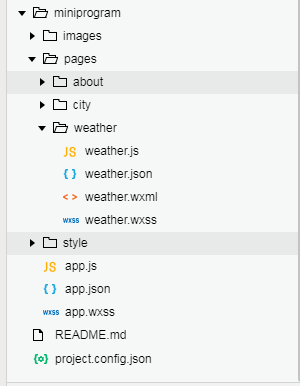
在原先pages文件夹中,删除index和log页面文件夹,新建weather、city、about三个页面文件夹,及三个页面对应的四个文件类型,文件结构如下图
接下来配置app.json文件
{"pages": ["pages/weather/weather","pages/about/about","pages/city/city"],"window": {"backgroundColor": "#F6F6F6","backgroundTextStyle": "dark","navigationBarBackgroundColor": "#F6F6F6","navigationBarTitleText": "天氣預報","navigationBarTextStyle": "black","enablePullDownRefresh": true},"tabBar": {"color": "#666","selectedColor": "#56abe4","backgroundColor": "#ddd","borderStyle": "black","list": [{"pagePath": "pages/weather/weather","iconPath": "images/tabbar/weather1.png","selectedIconPath": "images/tabbar/weather2.png","text": "天气预报"},{"pagePath": "pages/city/city","iconPath": "images/tabbar/city1.png","selectedIconPath": "images/tabbar/city2.png","text": "设置城市"},{"pagePath": "pages/about/about","iconPath": "images/tabbar/about1.png","selectedIconPath": "images/tabbar/about2.png","text": "关于我"}],"position": "bottom"}}
2、注册小程序和整体样式
修改app.js和app.wxss两个文件如下
//app.jsApp({//系统事件onLaunch: function () {//小程序初始化事件var that = this;//调用API从本地缓存中获取数据that.curid = wx.getStorageSync('curid') || that.curid;//API:获取本地缓存,若不存在设置为全局属性that.setlocal('curid', that.curid);//调用全局方法},/*******************************************************/
//自定义全局方法 setlocal: function (id, val) { wx.setStorageSync(id, val);//API:设置本地缓存 }, //自定义全局属性 curid: "CN101010100", version: "1.0"})/**app.wxss**/.container {display: flex;flex-direction: column;align-items: center;box-sizing: border-box;}
3、页面的结构(wxml)、样式(wxss)、逻辑(js)和配置(json)
小程序中的wxml摒弃了HTML标签, 改用view(类似div)、text(类似span)、icon等等,class同html指定样式,bindtap绑定事件(类似onclick),该页面无特殊配置,json文件内容为空(非必须文件)
!--weather.wxml--view class="container"view class="city" bindtap="bindViewTap"image class="dwicon" src='../../images/curcity.png'/imagetext当前城市:{{basic.location}}/text text class="update"最近更新时间:{{loc}}/textimage class="zbicon" src='../../images/update.png'/image/viewview class="weather" bindtap="showcurid" image class="section" src="{{icon}}"/image view class="aside" text class="temperature"{{now.tmp}}℃/text text{{now.cond_txt}} | {{now.wind_dir}}{{now.wind_sc}}级/text /view view class="other" view class="border_r"text class="title"相对湿度/texttext class="info"{{now.hum}}%/text/view view class="border_r"text class="title"降水量/texttext class="info"{{now.pcpn}}mm/text/view viewtext class="title"能见度/texttext class="info"{{now.vis}}km/text/view /view /view
view class="suggestion" text class="title"生活指数/text view class="list" view class="list_l" image src="../../images/icon/comf.png"/image text舒适度指数/text /view view class="list_r" text class="list_t"{{lifestyle[0].brf}}/text text{{lifestyle[0].txt}}/text /view /view view class="list" view class="list_l" image src="../../images/icon/cw.png"/image text洗车指数/text /view view class="list_r" text class="list_t"{{lifestyle[6].brf}}/text text{{lifestyle[6].txt}}/text /view /view view class="list" view class="list_l" image src="../../images/icon/drsg.png"/image text穿衣指数/text /view view class="list_r" text class="list_t"{{lifestyle[1].brf}}/text text{{lifestyle[1].txt}}/text /view /view view class="list" view class="list_l" image src="../../images/icon/flu.png"/image text感冒指数/text /view view class="list_r" text class="list_t"{{lifestyle[2].brf}}/text text{{lifestyle[2].txt}}/text /view /view view class="list" view class="list_l" image src="../../images/icon/sport.png"/image text运动指数/text /view view class="list_r" text class="list_t"{{lifestyle[3].brf}}/text text{{lifestyle[3].txt}}/text /view /view view class="list" view class="list_l" image src="../../images/icon/trav.png"/image text旅游指数/text /view view class="list_r" text class="list_t"{{lifestyle[4].brf}}/text text{{lifestyle[4].txt}}/text /view /view view class="list" view class="list_l" image src="../../images/icon/uv.png"/image text紫外线指数/text /view view class="list_r" text class="list_t"{{lifestyle[5].brf}}/text text{{lifestyle[5].txt}}/text /view /view
/view/view/**weather.wxss**/
/*城市信息*/.city {padding: 3% 5%; background: #ddd; overflow: hidden;}.city .dwicon{ width: 30rpx; height: 30rpx; float: left; margin: 5px;}.city text{font-size: 16px; color: #666; float: left;}.city .zbicon{ width: 30rpx; height: 30rpx; float: right;margin: 8px 5px;}.city .update{ font-size: 12px; float: right; width: 110px;}
/*天气预报*/.weather{overflow: hidden;background: #cef;color: #58b; padding: 5%; }.weather .section{ float: left; width: 100px; height: 100px; display: block; }.weather .aside{ float: right; width:40%; margin-top: 5%; font-size: 12px; }.weather .aside .temperature{ font-size: 36px; display: block;}.weather .other{ clear:both; padding-top: 5%; display: flex; }.weather .other view{ flex:1; text-align: center; }.weather .other .border_r{ border-right: solid 1px #bbd; }.weather .other .title{font-size: 12px; color: #bbd; }.weather .other .info{ display: block; padding-top: 5%; }
/*生活指数*/.suggestion{ margin-top: 5%;}.suggestion .title{ display: block; padding: 3% 5%; background: #58b; color: #fff;}.suggestion .list{ display: flex; font-size: 12px; margin-top: 1px; }.suggestion .list_l{ flex: 1; text-align: center; background: #cef; color: #bbd; padding: 8px;}.suggestion .list_l image{ width:30px; height: 30px; display: block; margin: 0 auto;}.suggestion .list_r{ flex: 4; background: #eee; padding: 8px; color: #aaa;}.suggestion .list_t{ font-size: 14px; display: block; margin-bottom: 5px; color: #333;}//weather.jsvar app = getApp(); //获取当前小程序实例,方便使用全局方法和属性Page({//1、页面数据部分data: {cur_id: app.curid,basic: "",now: "",icon: "",loc:"",lifestyle: []}, //设置页面数据,后面空值将在页面显示时通过请求服务器获取//2、系统事件部分onLoad: function() {var that = this;wx.showToast({title: '加载中',icon: 'loading',duration: 10000}) //设置加载模态框that.getnow(function(d) { //获取到数据的回调函数wx.hideToast();console.info(d)var icon1 = "https://cdn.heweather.com/cond_icon/" + d.now.cond_code + ".png";console.info(icon1)that.setData({basic: d.basic,now: d.now,icon: icon1,loc:d.update.loc}) //更新数据,视图将同步更新})that.getsuggestion(function(d) {console.info(d)that.setData({lifestyle: d.lifestyle}) //更新数据})},//3、自定义页面方法:获取当前天气APIgetnow: function(fn) {wx.request({ //请求服务器,类似ajaxurl: 'https://free-api.heweather.net/s6/weather/now',data: {location: app.curid,key: 'e1c701806a6746b6bdf3dd7f7f157ed4'}, //和风天气提供用户key,可自行注册获得header: {'Content-Type': 'application/json'},success: function(res) {fn(res.data.HeWeather6[0]);} //成功后将数据传给回调函数执行})},//获取生活指数APIgetsuggestion: function(fn) {wx.request({url: 'https://free-api.heweather.net/s6/weather/lifestyle',data: {location: app.curid,key: 'e1c701806a6746b6bdf3dd7f7f157ed4'},header: {'Content-Type': 'application/json'},success: function(res) {fn(res.data.HeWeather6[0]);}})},//4、页面事件绑定部分bindViewTap: function() {wx.switchTab({url: '../city/city'})} ,//跳转菜单页面// 下拉刷新onPullDownRefresh: function () {// 显示顶部刷新图标wx.showNavigationBarLoading();var that = this;wx.showToast({title: '加载中',icon: 'loading',duration: 10000}) //设置加载模态框that.getnow(function (d) { //获取到数据的回调函数wx.hideToast();console.info(d)var icon1 = "https://cdn.heweather.com/cond_icon/" + d.now.cond_code + ".png";console.info(icon1)that.setData({basic: d.basic,now: d.now,icon: icon1,loc: d.update.loc}) //更新数据,视图将同步更新})that.getsuggestion(function (d) {console.info(d)that.setData({lifestyle: d.lifestyle}) //更新数据// 隐藏导航栏加载框wx.hideNavigationBarLoading();// 停止下拉动作wx.stopPullDownRefresh();}) }})
4、注意防坑
跳转并刷新页面:需使用onshow来代替onload执行逻辑,onload只在首次打开页面时执行一次。如:B页面操作全局数据并跳转A页面,A页面onshow中获取全局数据更新视图。
posted @ 2019-01-07 09:22 你要 阅读(...) 评论(...) 编辑 收藏









