


在一个微信小程序中想要用到两种不同的tabbar样式,需要在app.js中自定义,在页面加载时进行调用。
比如一个小程序需要两个版本(用户版、商家版),并且能通过一个按钮在两个版本间进行切换,可能会用到这种方式。
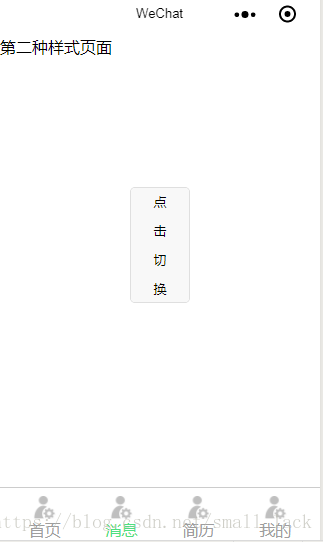
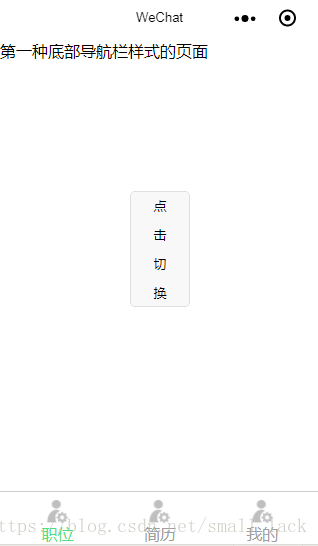
此处以两个页面(index,logs)显示两种tabbar样式为例,通过切换按钮进行切换。
首先有一个模板文件:tabbar.wxml
template name="tabBar" view class="tab-bar" style="color: {{tabBar.color}}; background: {{tarBar.backgroundColor}}; {{tabBar.position=='top'? 'top: 0' : 'bottom: 0'}}; {{tabBar.borderStyle? (tabBar.position=='top'? 'border-bottom: solid 1px '+tabBar.borderStyle + ';' : 'border-top: solid 1px '+tabBar.borderStyle + ';') : ''}}" block wx:for="{{tabBar.list}}" wx:key="pagePath" navigator url="{{item.pagePath}}" open-type="redirect" class="{{item.clas}}" style="{{item.active? 'color: '+(item.selectedColor? item.selectedColor : tabBar.selectedColor) : ''}}" image src="{{item.selectedIconPath}}" wx:if="{{item.active}}" class="img"/image image src="{{item.iconPath}}" wx:if="{{!item.active}}" class="img"/image text{{item.text}}/text /navigator /block view class="clear"/view /view /template 在app.json中无需定义“tabBar”
在app.js中自定义如下
//app.js App({ onLaunch: function () { }, //第一种底部 editTabBar: function () { //使用getCurrentPages可以获取当前加载中所有的页面对象的一个数组,数组最后一个就是当前页面。 var curPageArr = getCurrentPages(); //获取加载的页面 var curPage = curPageArr[curPageArr.length - 1]; //获取当前页面的对象 var pagePath = curPage.route; //当前页面url if (pagePath.indexOf('/') != 0) { pagePath = '/' + pagePath; } var tabBar = this.globalData.tabBar; for (var i = 0; i tabBar.list.length; i++) { tabBar.list[i].active = false; if (tabBar.list[i].pagePath == pagePath) { tabBar.list[i].active = true; //根据页面地址设置当前页面状态 } } curPage.setData({ tabBar: tabBar }); }, //第二种底部,原理同上 editTabBar1: function () { var curPageArr = getCurrentPages(); var curPage = curPageArr[curPageArr.length - 1]; var pagePath = curPage.route; if (pagePath.indexOf('/') != 0) { pagePath = '/' + pagePath; } var tabBar = this.globalData.tabBar1; for (var i = 0; i tabBar.list.length; i++) { tabBar.list[i].active = false; if (tabBar.list[i].pagePath == pagePath) { tabBar.list[i].active = true; } } curPage.setData({ tabBar: tabBar }); }, globalData: { //第一种底部导航栏显示 tabBar: { "color": "#9E9E9E", "selectedColor": "#f00", "backgroundColor": "#fff", "borderStyle": "#ccc", "list": [ { "pagePath": "/pages/index/index", "text": "职位", "iconPath": "/images/my.png", "selectedIconPath": "/images/my.png", "clas": "menu-item", "selectedColor": "#4EDF80", active: true }, { "pagePath": "/pages/logs/logs", "text": "简历", "iconPath": "/images/my.png", "selectedIconPath": "/images/my.png", "selectedColor": "#4EDF80", "clas": "menu-item", active: false }, { "pagePath": "/pages/test/test", "text": "我的", "iconPath": "/images/my.png", "selectedIconPath": "/images/my.png", "selectedColor": "#4EDF80", "clas": "menu-item", active: false } ], "position": "bottom" }, //第二种底部导航栏显示 tabBar1: { "color": "#9E9E9E", "selectedColor": "#f00", "backgroundColor": "#fff", "borderStyle": "#ccc", "list": [ { "pagePath": "/pages/index/index", "text": "首页", "iconPath": "/images/my.png", "selectedIconPath": "/images/my.png", "clas": "menu-item1", "selectedColor": "#4EDF80", active: false }, { "pagePath": "/pages/logs/logs", "text": "消息", "iconPath": "/images/my.png", "selectedIconPath": "/images/my.png", "selectedColor": "#4EDF80", "clas": "menu-item1", active: true }, { "pagePath": "/pages/cont/index", "text": "简历", "iconPath": "/images/my.png", "selectedIconPath": "/images/my.png", "selectedColor": "#4EDF80", "clas": "menu-item1", active: false }, { "pagePath": "/pages/detail/index", "text": "我的", "iconPath": "/images/my.png", "selectedIconPath": "/images/my.png", "selectedColor": "#4EDF80", "clas": "menu-item1", active: false } ], "position": "bottom" } }}) 在app.wxss中定义显示样式
.menu-item{ width: 32%; float: left; text-align: center; padding-top: 8px; } .menu-item1{ width: 24%; float: left; text-align: center; padding-top: 8px; } .img{ width: 23px; height: 23px; display: block; margin:auto; } .clear{ clear: both; } .tab-bar{ position: fixed; width: 100%; padding: 0px 2%; } .button{ margin: 130px;}index.wxml,用到自定义tabbar的页面的首部都需要引入模板文件
import src="../../template/tabbar.wxml"/ template is="tabBar" data="{{tabBar}}"/ 第一种底部导航栏样式的页面 button bindtap='tologs' size='mini' class="button"点击切换/buttonindex.js
//index.js var app = getApp();Page({ data: { }, onShow:function(){ app.editTabBar(); //显示自定义的底部导航 }, tologs:function(){ //按钮的绑定事件,点击跳转至logs wx.redirectTo({ url: '../logs/logs', }) }, onLoad: function () { }}) logs.wxml
//logs.js var app = getApp();Page({ data: { }, //点击按钮跳转页面 toindex: function () { wx.redirectTo({ url: '../index/index', }) }, onLoad: function () { //加载本页面的tabBar样式 app.editTabBar1(); } }) 加载自定义tabbar的那句话(app.editTabBar)写在onload或onshow中都可以。
只写了两个主页面,其他页面可自行定义跳转。
最后放上效果图:
感谢作者的分享
作者:small_lack
来源:CSDN
原文:https://blog.csdn.net/small_lack/article/details/80959278
版权声明:本文为博主原创文章,转载请附上博文链接!










