


微信小程序-获取当前城市位置
1, 获取当前地理位置,首先要拿到用户的授权wx.openSetting;
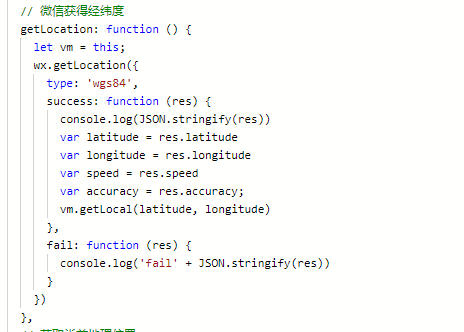
2,微信的getLocation接口,获取当前用户的地理位置(微信返回的是经纬度,速度等参数);
步骤描述清楚以后,下面就开始按步骤操作了;(本文仅仅讲述如何获取用户地理位置的授权)
图示为获取用户地理位置授权弹窗

在用户首次进入某页面(需要地理位置授权)时候,在页面进行onLoad,onShow时候,进行调用wx.getLocation要求用户进行授权;以后每次进入该页面时,通过wx.getSetting接口,返回用户授权具体信息。
wx.getSetting接口具体API地址链接为点击打开链接

上图中scope.userLocation就是地理授权的标志;
当该标志是underfind,表示用户初次进入该页面,当该标志是false,表示用户初次进入该页面拒绝了地理授权,应进行重新要求获取授权。
wx.getSetting({ success: (res) => { console.log(JSON.stringify(res)) // res.authSetting['scope.userLocation'] == undefined 表示 初始化进入该页面 // res.authSetting['scope.userLocation'] == false 表示 非初始化进入该页面,且未授权 // res.authSetting['scope.userLocation'] == true 表示 地理位置授权 if (res.authSetting['scope.userLocation'] != undefined && res.authSetting['scope.userLocation'] != true) { wx.showModal({ title: '请求授权当前位置', content: '需要获取您的地理位置,请确认授权', success: function (res) { if (res.cancel) { wx.showToast({ title: '拒绝授权', icon: 'none', duration: 1000 }) } else if (res.confirm) { wx.openSetting({ success: function (dataAu) { if (dataAu.authSetting["scope.userLocation"] == true) { wx.showToast({ title: '授权成功', icon: 'success', duration: 1000 }) //再次授权,调用wx.getLocation的API } else { wx.showToast({ title: '授权失败', icon: 'none', duration: 1000 }) } } }) } } }) } else if (res.authSetting['scope.userLocation'] == undefined) { //调用wx.getLocation的API } else { //调用wx.getLocation的API } } })在拿到用户授权以后,使用微信的API获取当前位置的经纬度微信获取位置API
2,下载微信小程序javaScriptSDK,
3,安全域名设置,在“设置” -> “开发设置”中设置request合法域名,添加http://api.map.qq.com
在文件中引入对应的javaScriptSDK文件
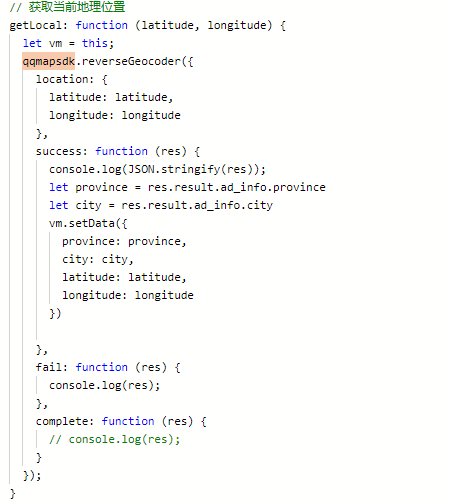
var QQMapWX = require('../../../utils/qqmap-wx-jssdk.js');var qqmapsdk;在文件中进行js调用,
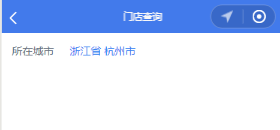
最后的结果就是可以获得自己所在城市的具体位置了
index.js部分的代码
//index.js//获取应用实例const app = getApp();var QQMapWX = require('../../../utils/qqmap-wx-jssdk.js');var qqmapsdk;Page({ data: { province: '', city: '', latitude: '', longitude: '' }, onLoad: function () { qqmapsdk = new QQMapWX({ key: 'XXXX-XXXX-XXXX-XXXX' //这里自己的key秘钥进行填充 }); }, onShow: function () { let vm = this; vm.getUserLocation(); }, getUserLocation: function () { let vm = this; wx.getSetting({ success: (res) => { console.log(JSON.stringify(res)) // res.authSetting['scope.userLocation'] == undefined 表示 初始化进入该页面 // res.authSetting['scope.userLocation'] == false 表示 非初始化进入该页面,且未授权 // res.authSetting['scope.userLocation'] == true 表示 地理位置授权 if (res.authSetting['scope.userLocation'] != undefined && res.authSetting['scope.userLocation'] != true) { wx.showModal({ title: '请求授权当前位置', content: '需要获取您的地理位置,请确认授权', success: function (res) { if (res.cancel) { wx.showToast({ title: '拒绝授权', icon: 'none', duration: 1000 }) } else if (res.confirm) { wx.openSetting({ success: function (dataAu) { if (dataAu.authSetting["scope.userLocation"] == true) { wx.showToast({ title: '授权成功', icon: 'success', duration: 1000 }) //再次授权,调用wx.getLocation的API vm.getLocation(); } else { wx.showToast({ title: '授权失败', icon: 'none', duration: 1000 }) } } }) } } }) } else if (res.authSetting['scope.userLocation'] == undefined) { //调用wx.getLocation的API vm.getLocation(); } else { //调用wx.getLocation的API vm.getLocation(); } } }) }, // 微信获得经纬度 getLocation: function () { let vm = this; wx.getLocation({ type: 'wgs84', success: function (res) { console.log(JSON.stringify(res)) var latitude = res.latitude var longitude = res.longitude var speed = res.speed var accuracy = res.accuracy; vm.getLocal(latitude, longitude) }, fail: function (res) { console.log('fail' + JSON.stringify(res)) } }) }, // 获取当前地理位置 getLocal: function (latitude, longitude) { let vm = this; qqmapsdk.reverseGeocoder({ location: { latitude: latitude, longitude: longitude }, success: function (res) { console.log(JSON.stringify(res)); let province = res.result.ad_info.province let city = res.result.ad_info.city vm.setData({ province: province, city: city, latitude: latitude, longitude: longitude }) }, fail: function (res) { console.log(res); }, complete: function (res) { // console.log(res); } }); }})页面展示部分的代码
<!--index.wxml--><view class="retailStore"> <view class="cnaps borderBottom"> <text>所在城市</text> <input class='m-bbt' placeholder-class='plhStyle' type='number' maxlength='50' placeholder='' bindinput="bindKeyInput" value='{{province}} {{city}}' disabled></input> </view></view>微信小程序










