


微信小程序文档中提供的组件有限,一定程度上限制了开发需求,这里就需要我们自定义一些控件,实现开发需求。自定义控件有两种方式,一种是选择模板的方式,另一种是选择组件的方式来创建。这里我选择了组件方式来创建,这样只需引入组件和外部添加数据,内部展示数据,即可实现重用。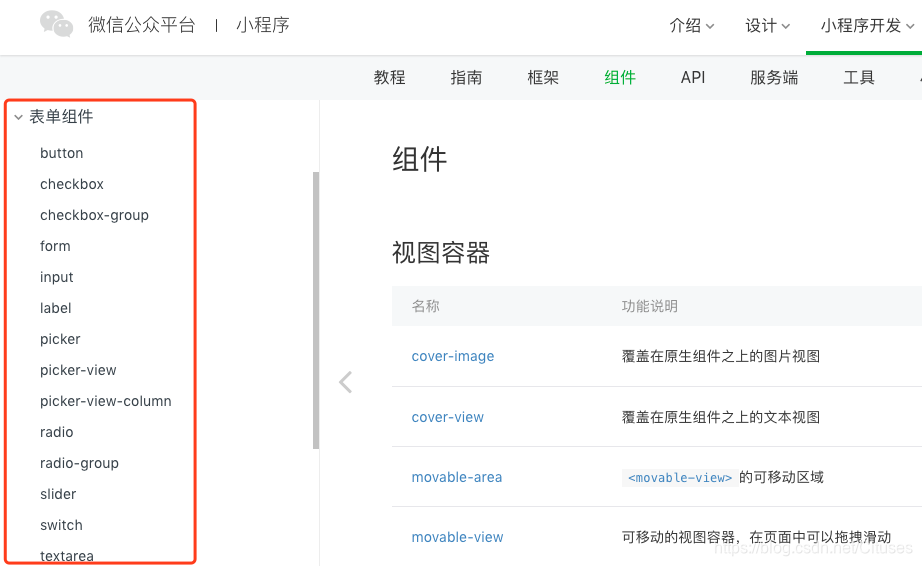
1、文件目录结构
这里一定要注意我们目录结构,个人喜好把项目中的业务文件放在pages中,图片放在与pages同级的images文件中,第三方的sdk存放在libs文件中,工具类存放在utils文件中,同样把共用的自定义组件存放在同级的component文件中。这样便于管理,查找使用。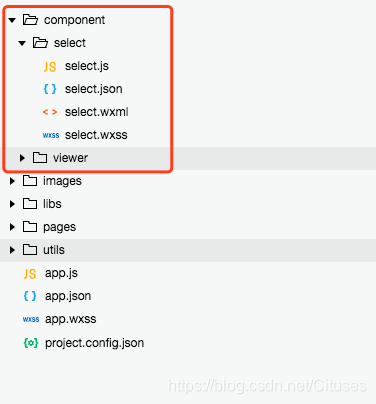
2、自定义组件
微信小程序中没有select下拉选项框,这里选择组件的方式来自定义创建一个select组件。
在component文件目录下,创建一个select文件夹,随后select文件夹下手动创建:select.js、select.json、select.wxml、select.wxss 四个文件。(注意: 可以在select文件夹下自动创建上面?四个文件,自动创建的文件会自动配置好代码。只需在引入组件的时候,在引入组件的页面的json文件中配置组件的名称和组件的位置即可。)
2.2、配置组件
select.js、select.json、select.wxml、select.wxss上面四个文件是是我们手动创建的,那就需要我们手动配置代码。在json文件中写入代码:"component": true 表示自定义组件声明,代码如下所示。
{ "component": true}同时,js文件中也需要写成这种格式,其代码如下:
Component({ /** 1. 组件的属性列表 */ properties: { selectArray: { type: Array, }, // 初始时要展示的内容 currentText:{ type:String, } }, /** 2. 组件的初始数据 */ data: { isShow: false, // 初始option不显示 arrowAnimation: {} // 箭头的动画 }, /** 3. 组件的方法列表 */ methods: { //option的显示与否 selectToggleAction: function () { // 获取当前option显示的状态 var nowShow = this.data.isShow; // 创建动画 var animation = wx.createAnimation({ timingFunction: "ease" }) this.animation = animation; if (nowShow) { animation.rotate(0).step(); this.setData({ arrowAnimation: animation.export() }) } else { animation.rotate(180).step(); this.setData({ arrowAnimation: animation.export() }) } this.setData({ isShow: !nowShow }) }, //设置内容 selectItemAction: function (e) { // 当前option的数据是引入组件的页面传过来的,所以这里获取数据只有通过this.properties var nowData = this.properties.selectArray; var index = e.target.dataset.index; // 当前点击的索引 var current_text = nowData[index].name; // 当前点击的内容 var current_type = nowData[index].type; // 当前点击的内容 // 再次执行动画,注意这里一定是this.animation来使用动画!!!!!! this.animation.rotate(0).step(); this.setData({ isShow: false, current_text: current_text, arrowAnimation: this.animation.export() }) // 内容更新后,需要把更新的数据传输出去 var nowDate = { id: index, name: current_text, type: current_type } // 这里的 getNowData 要和外部的 bind:getNowData ,名称一定要对应 this.triggerEvent('getNowData', nowDate); console.log("选择之后的current_text", current_text); } }})- Component构造器可用于定义组件,调用Component构造器时可以指定组件的属性、数据、方法等。
- properties是组件的对外属性,是属性名到属性设置的映射表,属性设置中可包含三个字段, type 表示属性类型、 value 表示属性初始值、 observer 表示属性值被更改时的响应函数。
- data 和普通页面的data一样,是组件的内部数据,和 properties 一同用于组件的模版渲染。
- methods组件的方法,包括事件响应函数和任意的自定义方法,关于事件响应函数的使用。在这里面获取数据有两种方法:一种是获取data里的数据: this.data.属性名;一种是获取 properties 中的属性值: this.properties.属性名。
注意!!!
如果还需要其他属性、数据、方法等可查看微信小程序官方文档 Component构造器。
在wxml文件中,代码如下所示:
<view class='section-select-box'> <view class='select-content' bindtap='selectToggleAction'> <view class='select-text'>{{currentText}}</view> <image class='select-img' src='../../images/icon_arrow_down.png' animation="{{arrowAnimation}}"></image> </view> <view class='select-list' wx:if="{{isShow}}"> <view class='select-list-item' wx:for="{{selectArray}}" data-index="{{index}}" wx:key='{{index}}' bindtap='selectItemAction'>{{item.name}}</view> </view></view>- animation方法是为了获取当前点击元素的索引与内容。这里
animation="{{arrowAnimation}}"是箭头转动的动画效果。 bindtap='selectToggleAction'selectToggleAction 方法是控制下拉选项框隐藏和显示的事件。bindtap='selectItemAction'selectItemAction 是下拉选项框选择子项之后,设置内容的事件。wx:if="{{isShow}}"isShow是为了控制 option 选项显示与隐藏。
在wxss文件中,代码如下所示:
.section-select-box { margin: 20rpx 30rpx; width: 690rpx;}.select-content { border: 2rpx solid #e2e2e2; border-radius: 10rpx; background: white; font-size: 34rpx; position: relative; height: 80rpx; line-height: 80rpx; padding: 0 10px;}.select-text { overflow: hidden; text-overflow: ellipsis; white-space: nowrap; font-size: 32rpx;}.select-img { position: absolute; right: 30rpx; top: 10rpx; width: 60rpx; height: 60rpx; transition: all .3s ease;}.select-list { background: white; width: inherit; position: absolute; border: 2rpx solid #e2e2e2; border-top: none; box-sizing: border-box; z-index: 3; max-height: 160rpx; overflow: auto;}.select-list-item { height: 30px; line-height: 30px; border-top: 2rpx solid #e2e2e2; padding: 0 10px; text-align: left; overflow: hidden; text-overflow: ellipsis; white-space: nowrap; font-size: 14px;}.select-list-item:first-child{ border-top: none;}2.3、使用组件
- 使用自定义组件前,需要在引入组件的页面的json文件中配置,比如我要在 index.wxml 中引入,那么在 index.json 中我就需要配置:
{ "usingComponents": { "Select": "/component/select/select" }}注意事项:
Select 是你定义的组件的名称,后面的是组件所在的位置。 / 单斜杠表示根目录,是绝对路径。
如果控制台报错,出现没找到路径的情况,一定是自己填写的路径不对,认真检查路径代码。
配置好后,在wxml引入组件,代码如下:
<Select class="section-select" select-array='{{selectArray}}' current-text="{{current_text}}" bind:getNowData='getCurrentTextAction'></Select>- select-array 是我在组件中自定义的属性名,这个是和组件所在的 js 中properties中的属性是对应的。在 properties 定义的属性中,属性名采用驼峰写法
例如:selectArray。在引入组件的 wxml 中,指定属性值时则对应使用连字符写法例如:select-array='{{selectArray}},selectArray为select组件中所需展示的数据源。 - 这里getNowData是自定义的子组件需要触发的事件名,getNowData是引入组件的页面需要获取传过来的数据的自定义的事件名。
// 内容更新后,需要把更新的数据传输出去 var nowDate = { id: index, name: current_text, type: current_type } // 这里的 getNowData 要和外部的 bind:getNowData ,名称一定要对应 this.triggerEvent('getNowData', nowDate); console.log("选择之后的current_text", current_text);在引入组件的页面的js添加引入组件时,自定义的函数:
getCurrentTextAction:function(e){ let item = e.detail; this.setData({ current_text: item.name, current_type: item.type }); }console.log(“打印数据”,e.detail),传过来的值就在detail里面。










